I consider myself quite an advanced Excel user but I still come across features and tools that I have never used before. In producing a spreadsheet for a client the other day, I needed to get a sales forecasting spreadsheet (which I had already designed) to work backwards to calculate the number of new leads that needed to be introduced to achieve a required annual budget.
I had been planning to re-build the spreadsheet from scratch, working the formulae backwards (no mean feat, it was a pretty complex spreadsheet going forwards), to calculate the answer. That was before I investigated the Solver Add-In, which is provided with the Excel/Office disks from 2003 onwards but not installed as part of the typical installation.
This Add-In allows you to set a requirement for the value of a target cell and calculates (through multiple itterations) the value required in another cell to achieve that target value. Great for forecasting.
If Solver is not on your
Tools Menu, then you need to select
Tools ->
Add-Ins and tick the box that says
Solver Add-In and then click
OK.
Once the Add-In is installed, select
Solver from the
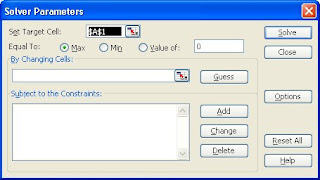
Tools Menu, you will see the following:
In the box marked
Set Target Cell choose the cell that contains the result that you wish to fix, e.g. forecast sales. You can then choose to maximise that cell, minimise it, or require a specific value.
You then choose the cells you wish to vary to achieve this (in the
By Changing Cells box), Solver can guess these for you if you want.
If you have any particular constraints you need to apply, these can be added in the box below. For example, particular change cells might need to be an integer or must be between certain values.
There are options to change tolerances, etc. by clicking the
Options button, but that would be overkill in this article.
You can then click
Solve and Solver will change the cells until it achieves the required outcome (or fails to find one that meets the criteria).
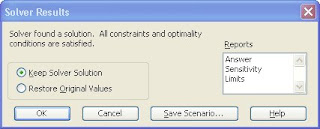
Assuming it finds a solution, you can choose to keep it or restore the original values.
You also have the opportunity to see various reports on the solution.
Note that Solver has not added new formulae to the spreadsheet, merely changed an input value based upon your required outputs. This means you can use it in your existing forecast spreadsheets to work out what you need to do to achieve your targets.
Have a play, I think you'll find it useful.
If you enjoyed this post, go to the top left corner of the blog, where you can subscribe for regular updates and your free report. If you wish to help me to provide future posts like this, please consider donating using the button in the right hand column.


